Setting Up a Domain Name
How we gave our server a name people can remember instead of a string of numbers.
Every server on the internet has an IP address, a number like 213.x.x.x. Computers
are happy with numbers, but people aren’t. DNS (the Domain Name System) is the
internet’s phone book: it turns a name like supersims21.org into the server’s IP address.
We already had a server with an IP address. Getting a name for it took three steps.
Step 1: Buying the Domain Name
First we needed to own a name. We searched a domain registrar to see which names were still
available and how much they cost. A domain is rented by the year, and the price depends on
the ending (.com, .org, .ai, and so on).
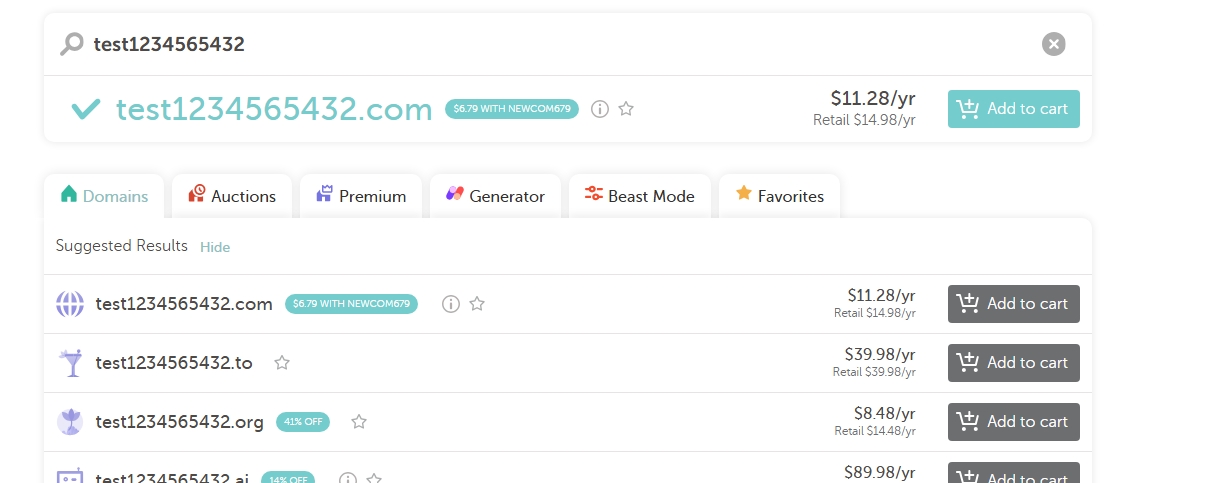
Searching for a name. The green check means it’s available. Each ending has its own price.
Once we found a name we liked, we added it to the cart and bought it.
Step 2: Pointing the Name at Our IP
Owning a name doesn’t do anything by itself. We had to tell DNS which server the name belongs to. We did that by adding an A Record in the registrar’s DNS settings.

The A Record links our domain name to the IP address we already had.
What each column means:
Type: A Record maps a name to an IPv4 address.
Host: @ means the bare domain itself (
supersims21.org, with nothing in front).Value is our server’s IP address (blacked out here for privacy).
TTL (Time To Live) is how long other computers may remember the answer before asking again.
Changes can take a little while to spread across the internet, because DNS servers everywhere hold on to old answers until their TTL runs out.
Step 3: Pinging to Check the Connection
Finally we tested it with ping, which sends small messages to a computer and waits for
replies.
ping supersims21.org

The first line shows the name turned into our IP address, so DNS is working.
The important part is the very first line: PING supersims21.org (213...). Before ping
can send anything, it has to look up the name, and it got back our IP address. That
proves the A Record from Step 2 is working.
You might notice 0 received, 100% packet loss at the bottom. That doesn’t mean DNS
failed. Many servers and cloud firewalls are set to ignore ping messages for security, so
the name can point to the right place even when the server doesn’t answer the ping.